
An AI stem splitter estimates separate audio groups from a mixed song. MusicGPT.cc produces six tracks: Vocals, Drums, Bass, Other, Guitar, and Piano.
AI Stem Splitter
Split a mix into Vocals, Drums, Bass, Other, Guitar, and Piano. Upload your audio or select a library song. Processing requires a paid plan.
Select a Song
Upload authorized audio or choose a playable song from My Songs to separate six stem groups.
How to split a song into stems
Choose your source recording
Upload authorized audio or select a playable track from My Songs.
Start six-stem separation
Sign in, check paid-plan access, and submit the song for separation.
Review the audio groups
Listen to all six stem slots. Quiet or missing instruments may leave silent files. Import available downloads into your editor.
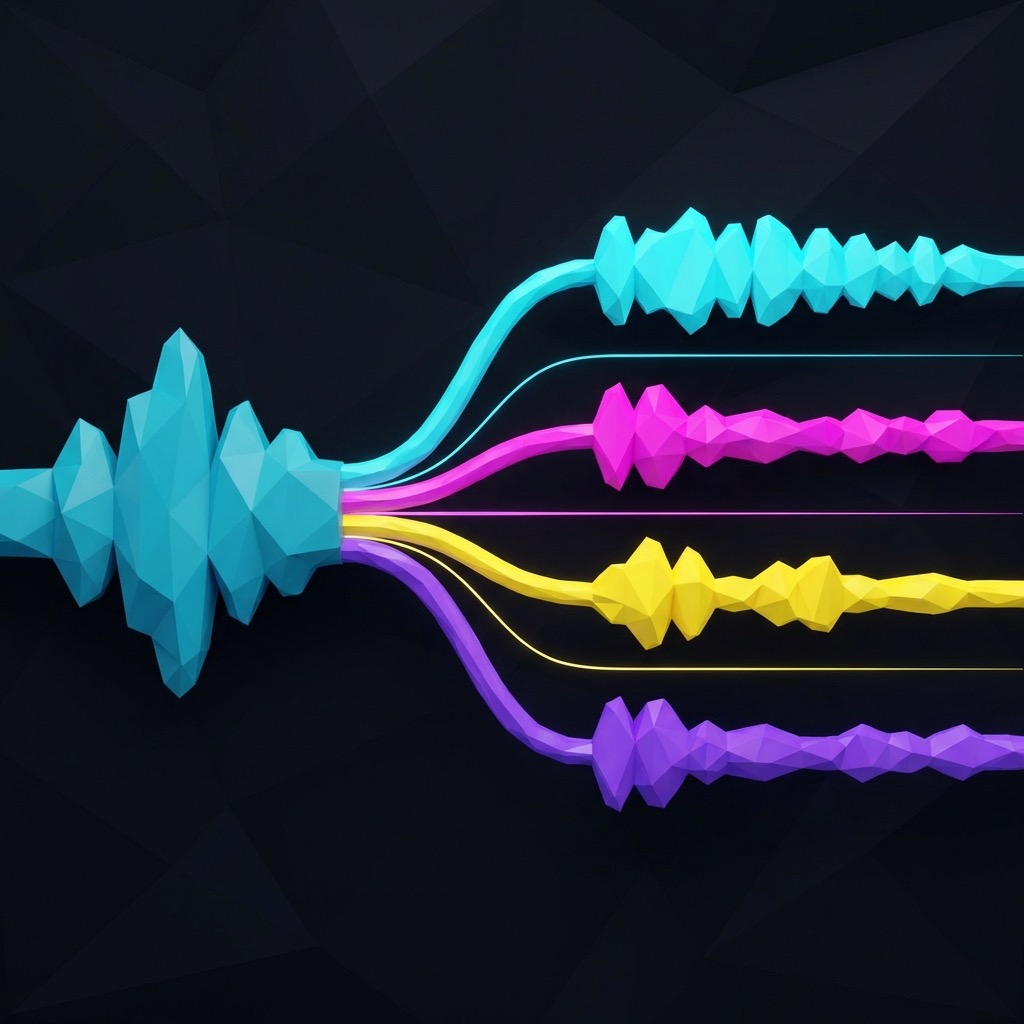
Work on one part of the mix
A stem splitter estimates audio groups from a mixed recording. Use the files to listen closely, rebalance parts, or edit in a DAW. They are not the original recording-session tracks.
The six output groups are:
- •Vocals
- •Drums
- •Bass
- •Other
- •Guitar
- •Piano
Overlapping sounds can bleed between groups. Compare a stem with the original before changing the mix.

Six files does not mean six audible parts
A file is created for each group. If the source has no part in that group, the file can be silent or nearly silent.
A quiet Piano or Guitar stem does not necessarily mean the task failed. Listen to the original to check whether that instrument is present.

What Files Will You Get?
- •Six separated audio files
- •Check each file for bleed, missing detail, and artifacts
- •Use available downloads to balance or edit the groups in a DAW

Take the parts into your editor
Mute, balance, or rearrange the groups in your DAW. A dense mix, heavy reverb, or distortion can leave artifacts that need closer listening.
Use the files to:
- •Hear a bass line or vocal phrase on its own
- •Try a different balance between instruments
- •Edit a part while keeping the other groups separate
- •Continue arranging in your DAW
Use stem separation when you need several audio groups rather than a single combined backing track.
Who Is Stem Splitter For?
Music Producers
Access individual instrument and vocal groups for detailed production work.
Remix Artists
Try a new arrangement from separated layers; confirm rights before publishing a remix.
DJs
Isolate elements for creative mixing and live performances.
Musicians and Composers
Study and learn from individual instrument parts.
Content Creators
Work with layered audio for videos, podcasts, and more.
Stem Splitter vs Vocal Remover
If you only need a vocal track and an instrumental backing, use Vocal Remover.
| Output and workflow | Vocal Remover | Stem Splitter |
|---|---|---|
| Main purpose | Vocals versus full instrumental backing | Full multi-type stem separation |
| Output files | 2 tracks (vocals / instrumental) | Creates exactly six tracks: Vocals, Drums, Bass, Other, Guitar, and Piano. |
| Type of data | Separated audio | Separated audio; not MIDI notes |
| Typical use | Karaoke, covers, quick instrumental | Remixing, detailed production |
Split your recording into stems
Choose the source above. Listen to the groups before importing the files into your editor.
Stem SplitterVocal Remover
Choose two-track separation when you only need vocals and combined backing.
Remove VocalsAudio to MIDI Converter
Convert a clear melody into note data rather than audio files.
Convert audio to MIDIAI Music Generator
Create source music from a text prompt or your own lyrics on the homepage.
Generate a songAI stem splitter FAQ
Vocal Remover produces two tracks: Vocals and Instrumental. Stem Splitter produces six audio groups so you can work on drums, bass, and other parts separately.
Six stem slots are created: Vocals, Drums, Bass, Other, Guitar, and Piano. A slot may be silent or nearly silent if that part is absent from the source mix.
Stem processing requires a paid plan. Check Pricing and your account for current access, credits, and download options.
Yes. Upload MP3, WAV, M4A, AAC, OGG, or FLAC audio, or choose a playable library track. You must have permission to process the recording.
Downloaded audio stems can be imported into compatible DAWs for further editing. Listen for bleed and artifacts first; separated stems are not identical to original multitrack recordings.
No. Stems are audio files. Use Audio to MIDI for editable note and timing data, which you then assign to an instrument in your DAW.